This guide will help you through the process of registering and configuring the "Telebria SmartAssist" enterprise application within your Microsoft Entra environment. Since "Telebria SmartAssist" is not available through the marketplace yet, it requires manual registration and setup. We will cover how to register the app, and configure it for access by all users or restrict access to certain users through AD groups or direct user authorizations.
Prerequisites
Ensure you have:
- Administrative access to Microsoft Entra.
- A basic understanding of how Microsoft Entra works.
Shortcut to registration - preferred way
You may be able to have the application self register if you first attempt to login to the application at https://app.smartassistpm.com/. If allowed by the organization, simply logging in will get the application registered with the default values. You will still need to follow the instructions below to add any restrictions or setting you want in place. Refer to the login instructions here Logging in with your M365 account
Step 1: Register the Application
1. Log into Microsoft Entra:
- Navigate to https://entra.microsoft.com/ and sign in with your administrative credentials.
2. Navigate to App Registrations:
- Once logged in, find and click on "App registrations" from the dashboard or use the search function to locate it.
- Look to see if the application is already there. It can be automatically added if a user has successfully logged into the app if current policies allow it. If it is already there, skip to step 3.
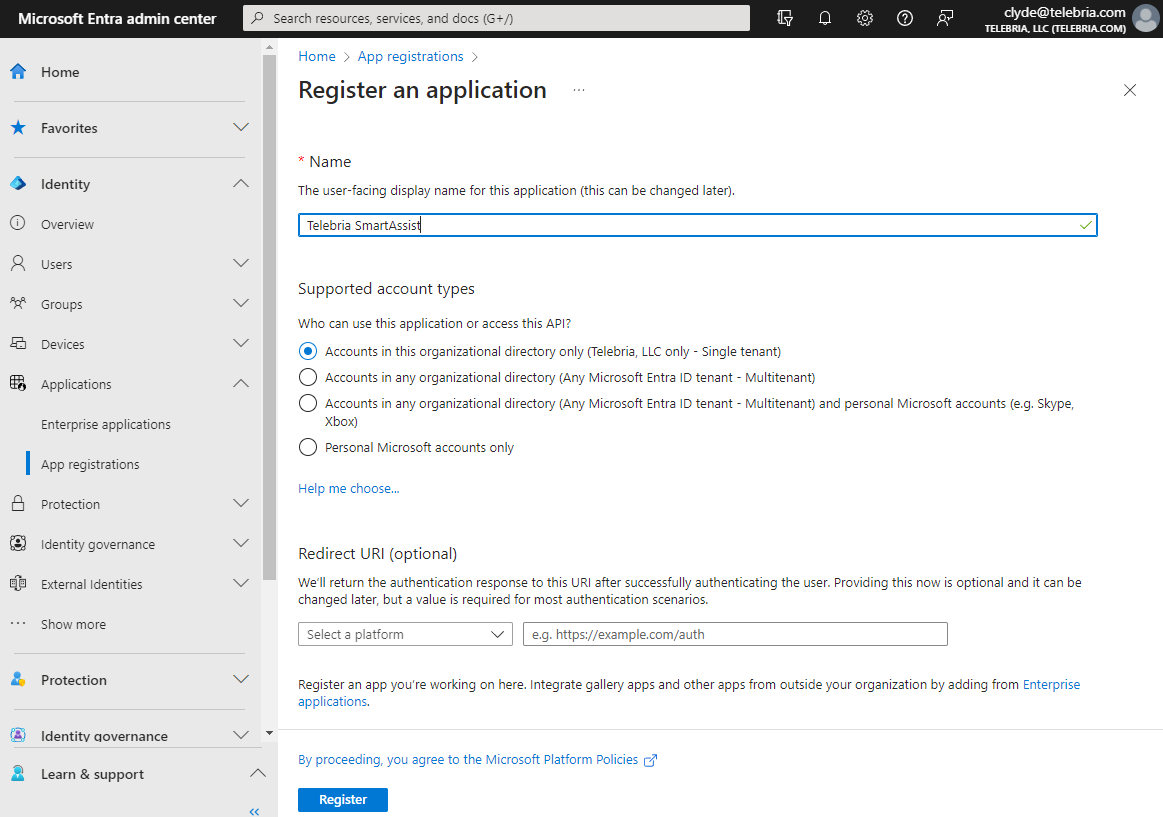
3. Start the Registration Process:
- Click on "New registration" at the top of the page.
- Provide a name for your application, such as "Telebria SmartAssist".
- Choose the account type "Accounts in this organizational directory only".
- Finalize the registration by clicking "Register".
Step 2: Configure Permissions
1. Access the Application Overview:
- After registration, you'll be directed to the application's overview page. Take note of the Application (client) ID and Directory (tenant) ID for later use.
2. Set API Permissions:
- Navigate to "API permissions" in the menu.
- Click "Add a permission", then choose the APIs your application requires access to. If "Telebria SmartAssist" needs to interact with Microsoft services, add the necessary permissions here.
- After adding permissions, click "Grant admin consent for {Your Organization}" to apply these permissions organization-wide.

Step 3: Configuring User and Group Access
Option A: Enable Access for All Users
To make "Telebria SmartAssist" available to all users:
1. Navigate to Enterprise Applications:
- Go back to the Entra dashboard and select "Enterprise applications" from the navigation pane.
2. Locate Your Application:
- Use the search functionality to find "Telebria SmartAssist".
3. Adjust Access Settings:
- Under Manage select Properties, make sure that "Assignment required?" is set to "No". This configuration allows all users in the organization to access the application.
Option B: Restrict Access to Specific Users or Groups
To limit access to "Telebria SmartAssist":
1. Require User Assignment:
- Under Manage select Properties, change "Assignment required?" to "Yes".
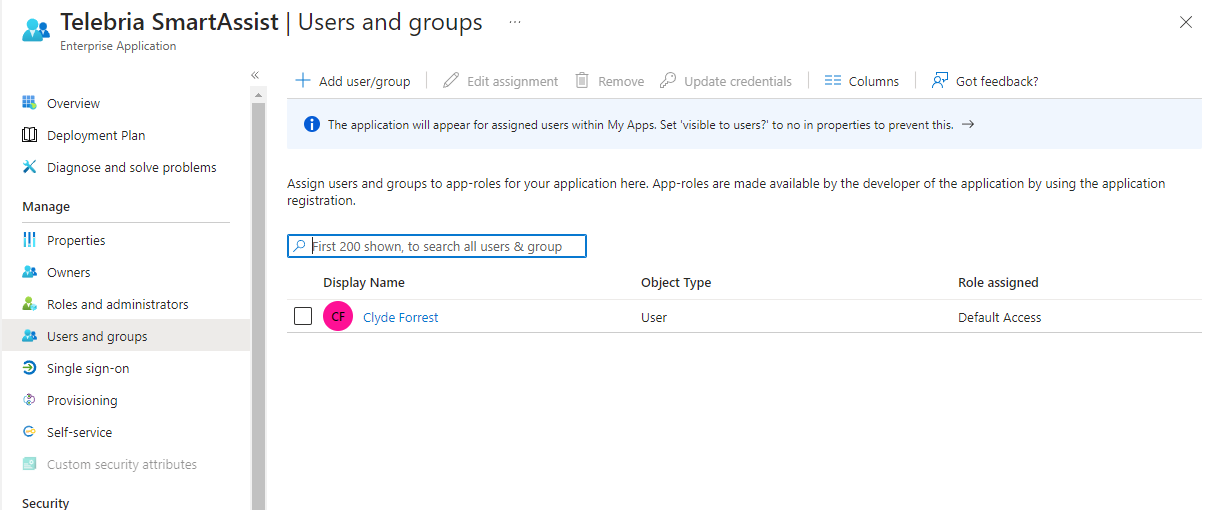
2. Assign Users or Groups:
- Select "Users and groups" from the menu.
- Click "Add user/group", then choose "Users and groups" in the assignment dialog.
- Search for and select the users or groups that should have access to "Telebria SmartAssist". Confirm by clicking "Select" and then "Assign".
Finalizing Setup
Congratulations, you have successfully registered and configured "Telebria SmartAssist" in your Microsoft Entra environment according to your organization's access requirements.
Was this article helpful?
That’s Great!
Thank you for your feedback
Sorry! We couldn't be helpful
Thank you for your feedback
Feedback sent
We appreciate your effort and will try to fix the article